7
Model, Cowork, Connector — three things new Claude users often overlook
Which model suits which task, how Cowork differs from chat, and why a connector button turns Claude from a chat box into a tool that can actually touch Figma files. With an example of building an entire app design set using Vietnamese commands.

People opening claude.ai for the first time usually do exactly one thing: type a question, read the answer, close the tab. But most of what's worth using sits in three other places: the model picker, the Cowork button next to the input box, and the connectors list. Those three decide whether Claude is just a chat box or somewhere you actually get work done.
What a model is, and why there are four names
A model is the brain underneath. Same interface, but which brain you're talking to is your choice. Anthropic describes four models for end users. Haiku is fast and light, suited to lookups, summaries and classification. Sonnet is the everyday choice for writing, coding and analysis, and the place to start if you don't know what to pick. Opus is for work that needs deep, sustained thinking. Fable is the most powerful, built for longer jobs where you describe the outcome and let it plan the rest.
Free accounts get Haiku and Sonnet. Pro and Max plans unlock Opus, Fable, and higher limits.
Where newcomers often get it wrong: a stronger model doesn't mean a better result. Each model burns through your limits at a different rate, with Haiku the lightest and Fable the heaviest. Using Fable to summarise an article is burning quota for nothing extra.
Chat and Cowork: what's the difference
Chat is conversation: you ask once, Claude answers once.
Cowork is where you hand over work. Anthropic built it on the same architecture as Claude Code, the tool originally meant for programmers, but without the terminal. You describe the result you want, Claude plans it out, breaks the job into smaller pieces, runs commands in an isolated environment on Anthropic's servers, then hands back the finished files. You can still watch what it's doing and step in to redirect at any point.
How to turn it on: in the message input box, choose "Cowork" instead of "Chat". It needs a paid plan. If you want Claude to touch files on your machine or open a browser, you need the Claude Desktop app installed and running.
Jobs that suit Cowork sound very everyday: tidying a Downloads folder by type and date, turning a pile of receipt photos into an expense spreadsheet, building an Excel file with working formulas.
The cost: Cowork eats far more quota than chat, so for simple questions, stick with Chat.
Connectors: the key to a locked door
Without connectors, Claude only knows what you paste into the chat box. With them, it can read real data inside the tools you already use and take real actions there. The technical standard behind the name is the Model Context Protocol, or MCP, but you don't need to know anything about it to click the button.
Where to manage them: the plus menu in the chat box, or the Customize > Connectors page. If you're on a company account, an admin may have added extra limits, such as requiring manual approval for write actions.
Connectors come with three approval modes in Cowork. Manual means Claude asks before every action. Auto lets it run freely but each action still passes a safety check, at the cost of more quota. Skip asks nothing and has no safety layer at all.
Try it: using Claude to touch Figma files
Figma is the easiest example to see results, because everything appears right on the canvas. First, enable the Figma connector in Claude Desktop and log in to your Figma account. Figma runs a remote server at mcp.figma.com/mcp, and according to their docs, that server works on every seat type and every plan.
The first direction is reading. In a Figma file, right-click the frame you care about, choose "Copy link to selection", paste the link into Claude and ask it to build code from the design.
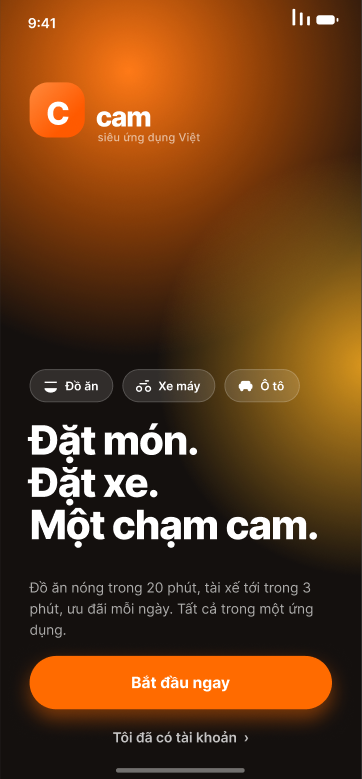
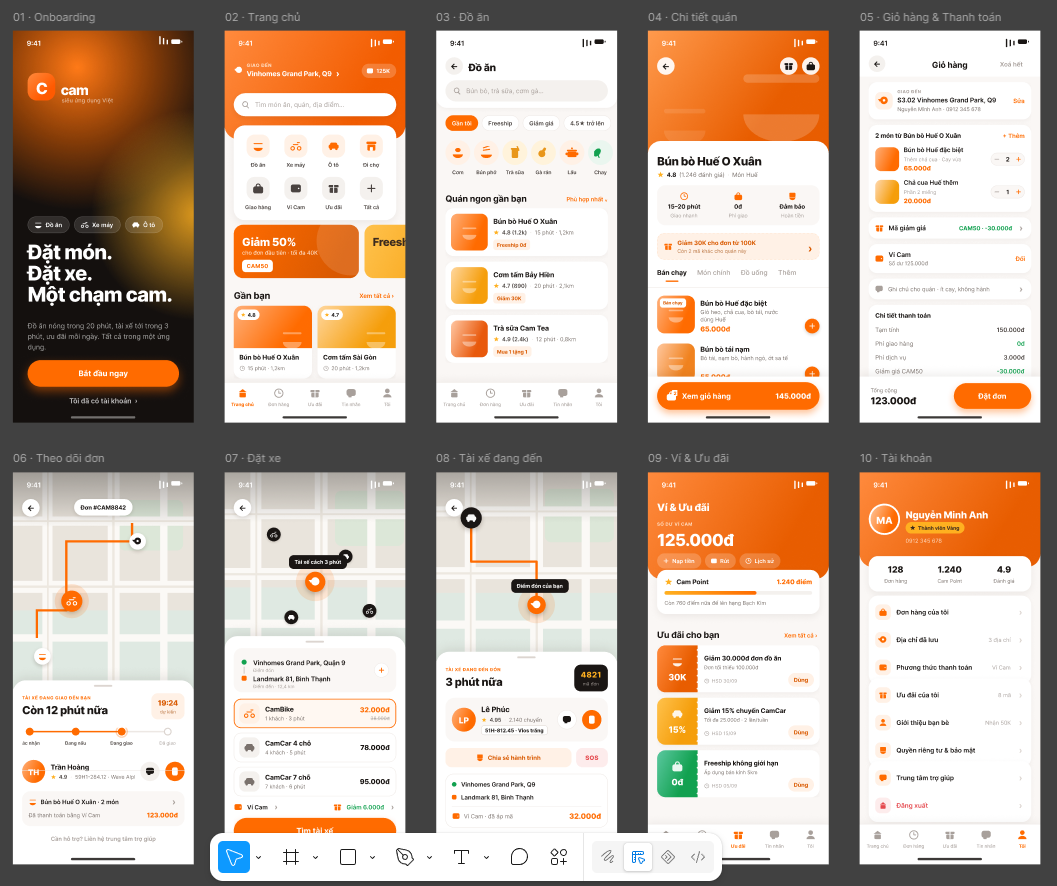
The second direction: writing straight onto the canvas. With the remote server, Claude creates and edits real Figma content, including frames, components, variables and auto layout. Figma notes the feature is in beta and currently free, but will later be charged based on usage. A real example: I asked Claude to build the design for Orange Super App, an iOS app that combines food delivery and ride-hailing, with an orange theme to stand out from Grab and Be. Claude created a new file right inside my Figma account, split it into three pages, set up a colour palette as Variables alongside 10 text styles and 21 icon components, then drew 10 screens at 393 x 852pt, from onboarding to an order-tracking screen. All of it was done through Vietnamese commands, with no drag-and-drop of any image — the file stayed intact in my Figma account, and opening it reveals layers, components and variables just as if I had built them by hand.
The hard part is not the buttons
Setup takes only a few minutes, and not a single line of code.
The real challenge is what those three approval modes are telling you. You are not switching on an extra feature; you are granting the ability to act on your documents and your account. Anthropic is blunt about it: no mode replaces the user's judgement.
So the question for newcomers is not "what can Claude do", but rather: how far do you let it reach, and how will you check its work?
Source: Anthropic Help Center — Get started with Claude Cowork; Claude — Choosing the right Claude model; Figma Learn — Guide to the Figma MCP server.
Comments
No comments yet. Be the first!
You need to sign in to comment.