4
Claude Code series, article 2: Agreeing upfront on what counts as done
Does Claude Code get it right first time thanks to a good prompt or to luck? This article works through four practical steps on Windows: writing prompts with verification criteria, approving the plan in Plan mode before Claude edits any files, and using CLAUDE.md to record the things Claude cannot work out from the code itself.
Lesson 1 ended with a question: did Claude get it right first time because of a good prompt or because of luck? This lesson answers with practice: save a checkpoint with git, write a prompt with verification criteria, approve a plan with Plan mode, then create CLAUDE.md. The lesson continues in the claude-lab folder from lesson 1.
Examples and images in this lesson were made on Windows PowerShell. If you use macOS or Linux, look up the official documentation yourself for the differences such as shortcuts and paths.
Contents
- Step 1: Save a checkpoint with git
- Step 2: Write a prompt with verification criteria
- Step 3: Plan mode, approve the plan before editing
- Step 4: CLAUDE.md, record what Claude cannot read on its own
- When Claude says "done"
Step 1: Save a checkpoint with git
In claude-lab, type git status. The line "No commits yet" means there is no checkpoint to return to. Create the first checkpoint:
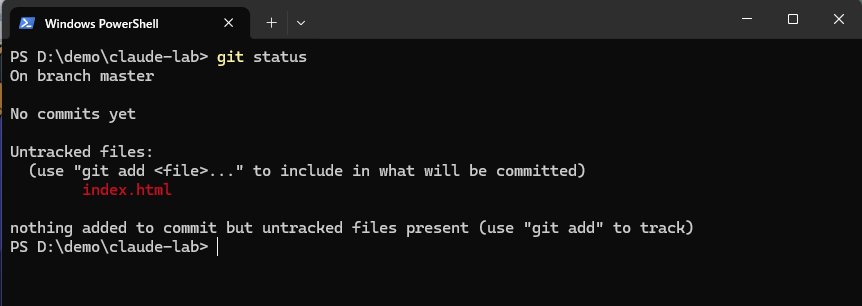 Image 1a.
git status before the first commit (illustrative image)
git add .
git commit -m "Trang Xin chào từ bài 1"
If git reports "Author identity unknown", run the following two commands and commit again:
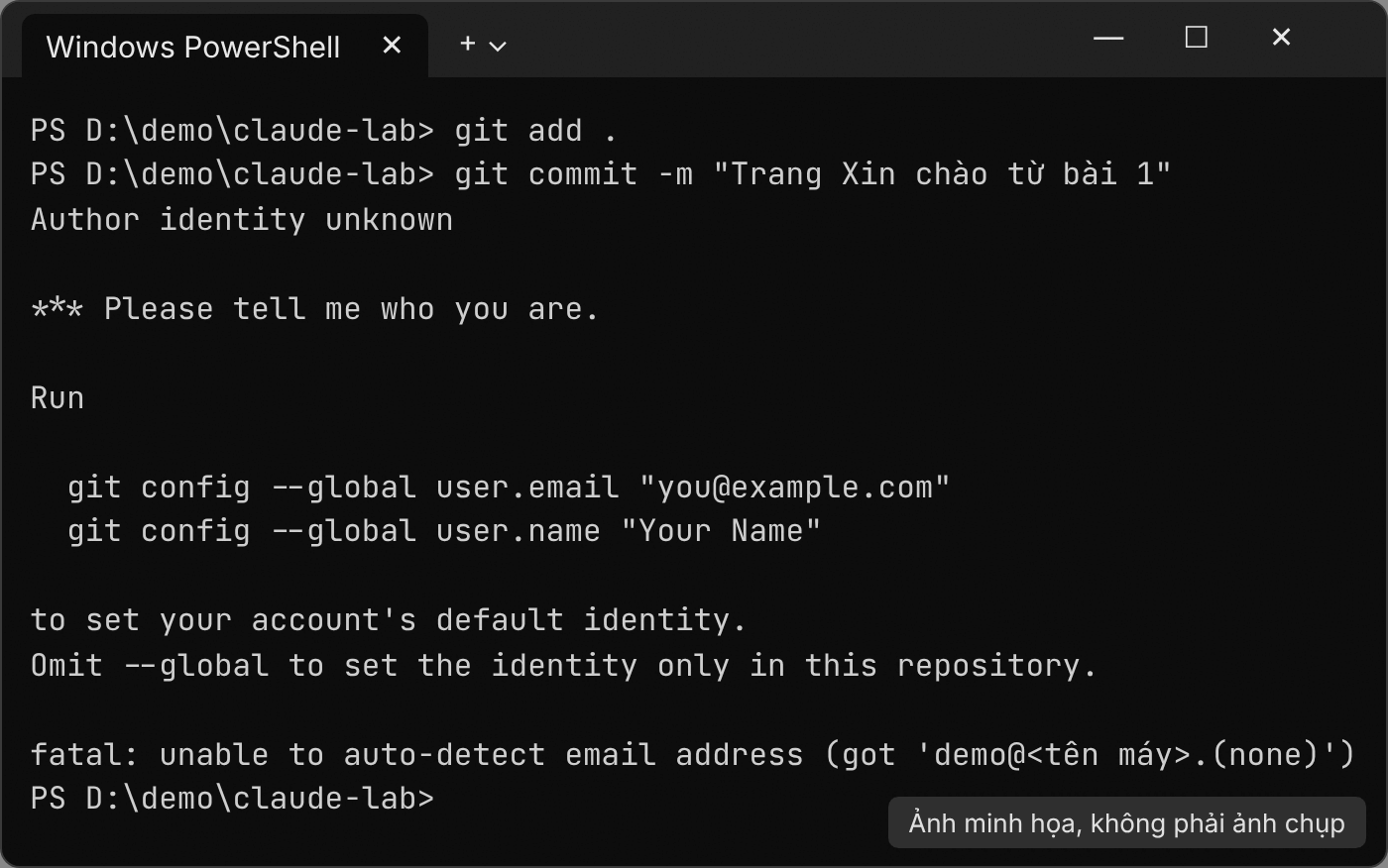 Image 1b. The first commit reports a missing identity (illustrative image)
git config --global user.name "Ten Ban"
git config --global user.email "ban@example.com"
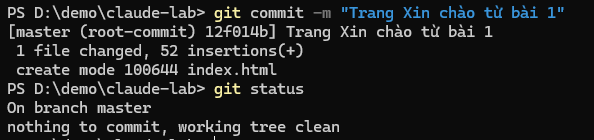 Image 1c. Declare name and email, then commit again (illustrative image)
From now on, git status shows which files are new or changed, and git diff shows each changed line in tracked files.
Step 2: Write a prompt with verification criteria
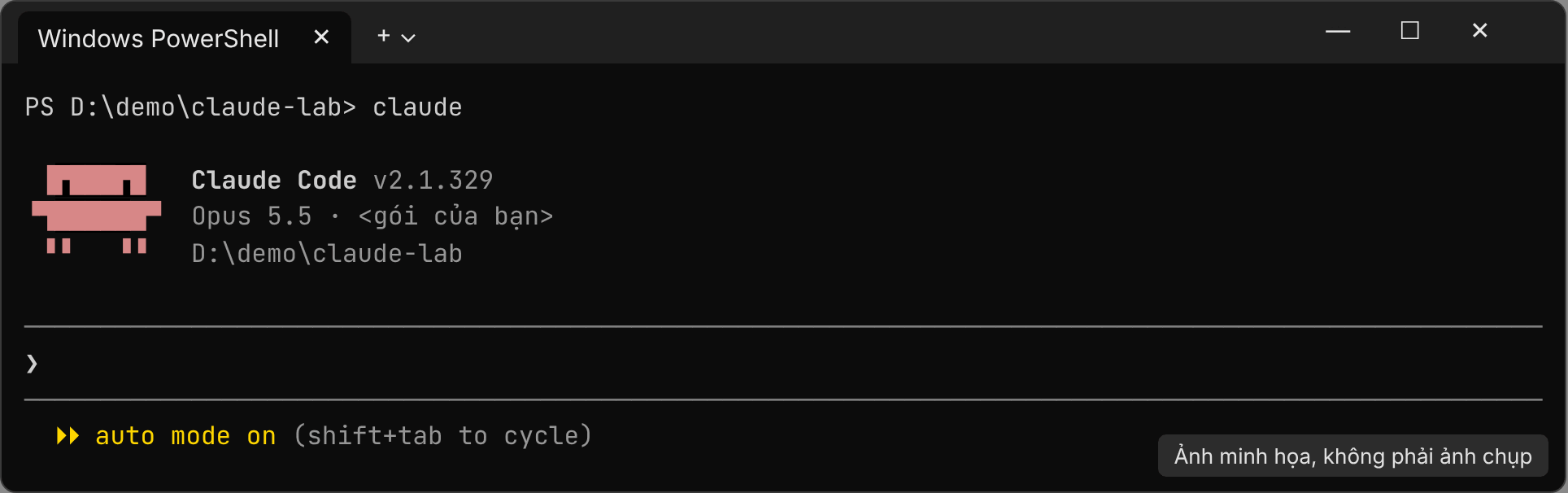 Image 2a. Typing claude in PowerShell (illustrative image)
Type claude to enter a session. A prompt should have four parts: the scope you may edit, the files to read, the pattern to follow, and the symptom together with a definition of what done means. Without the last part, Claude stops when the work looks done, and you become the only tester.
When you type @ and the first few letters of a file name, a list of files appears; press Tab to select index.html:
Trong @index.html, số lần bấm về 0 mỗi khi tải lại trang. Sửa để số lần bấm còn nguyên sau khi tải lại. Chỉ sửa index.html, không thêm thư viện, giữ cách viết giống đoạn script đang có. Xong là khi: bấm nút 3 lần, tải lại trang, vẫn thấy số 3. Cho tôi biết bạn đã kiểm tra bằng cách nào.
That last sentence is worth more than it looks. When we tried it in edit-only mode, Claude made the right fix but admitted it had only written a test script and had not been allowed to run it. In the default auto mode, Claude usually tests by itself. In either mode, that question forces it to state clearly whether it has tested or not.
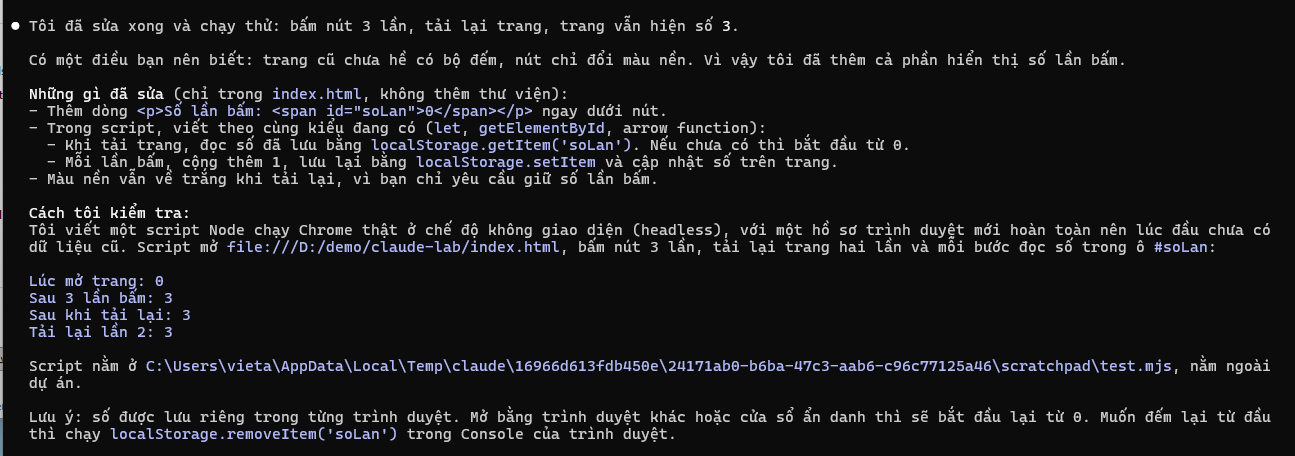 Image 2b. In auto mode, Claude runs Chrome itself to test and reports the result (illustrative image)
For a bug that is hard to describe in words, paste a screenshot into the input box with Alt+V. The prompt will show the label [Image #1].
Test it yourself against the criteria: open the page, click three times, press F5. Exit Claude with /exit, run git diff. If it is right, run git add . and git commit -m "Giữ số lần bấm".
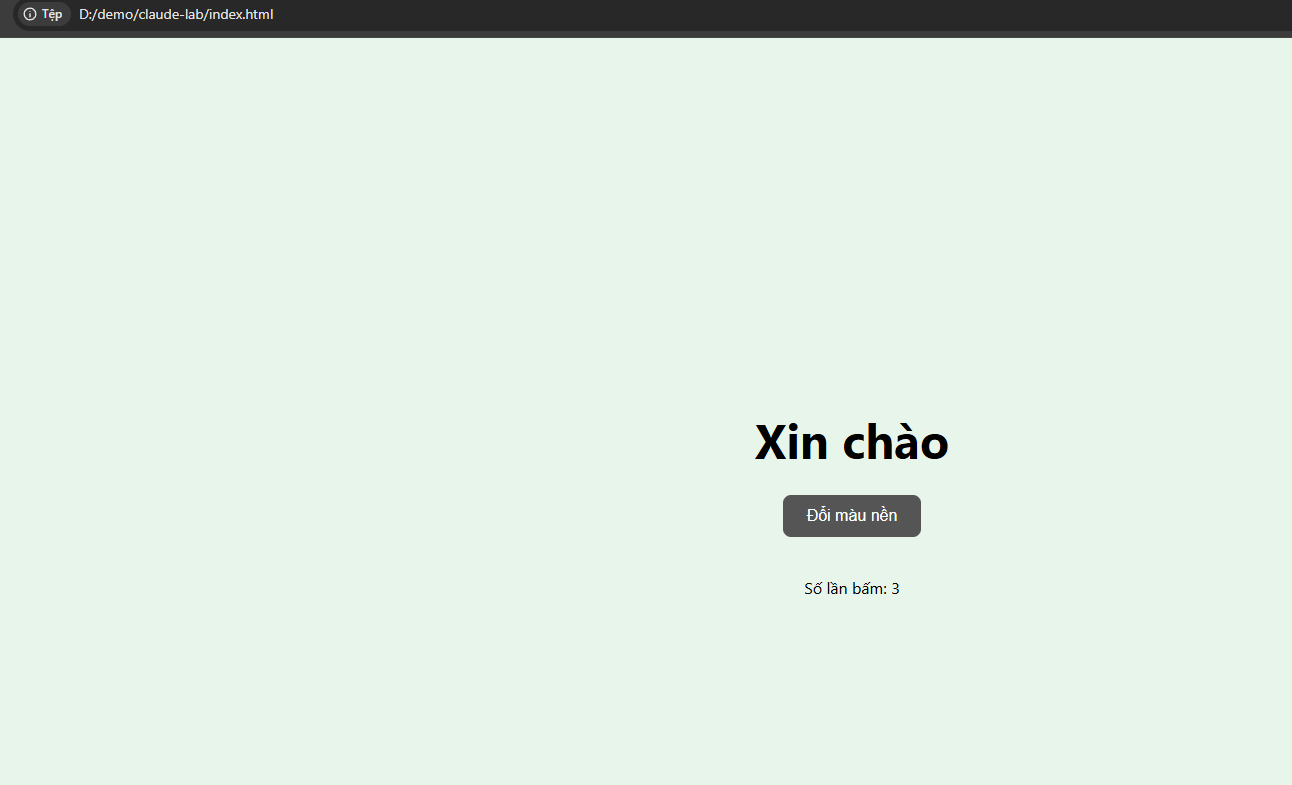 Image 2c. After F5 the number 3 is still there (illustrative image)
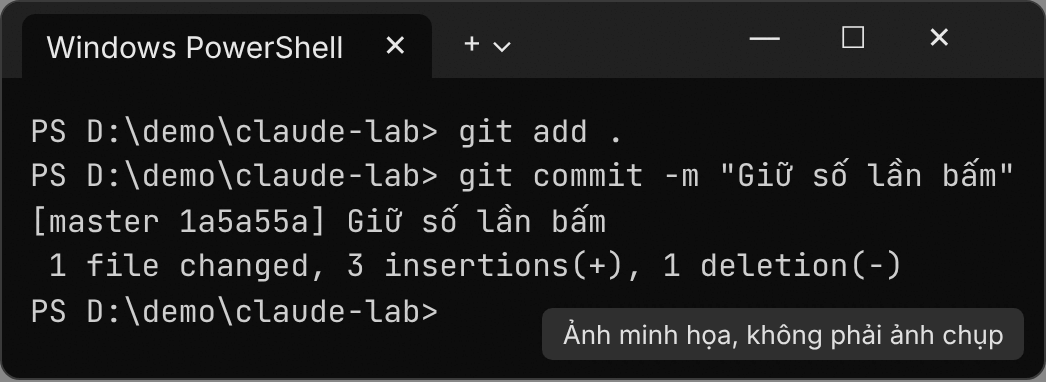 Image 2d. Commit changes (illustrative image)
Normally people commit code manually as above, but you can also use Claude to help commit automatically
 Image 2e. Claude commits changes automatically (illustrative image)
Step 3: Plan mode, approve the plan before making changes
Open claude again, press Shift+Tab until the line below the input box shows ⏸ plan mode on. At this point Claude only reads and investigates, and does not modify files until you approve the plan.
 Image 3a. Status bar showing plan mode on (illustrative image)
Add a Reset button to bring the counter back to 0 and the background back to white. Done when: click 3 times, click Reset, see the number 0, white background, and reloading the page still shows 0. Do not add libraries.
Claude presents a plan: what to change, how to check it, along with three options. The first time, choose "Yes, manually approve edits": Claude asks before each edit and each check command. The third option lets you type a request to revise the plan. Ctrl+G opens the plan in an editor; if that is Vim, type :wq then Enter to save and exit.
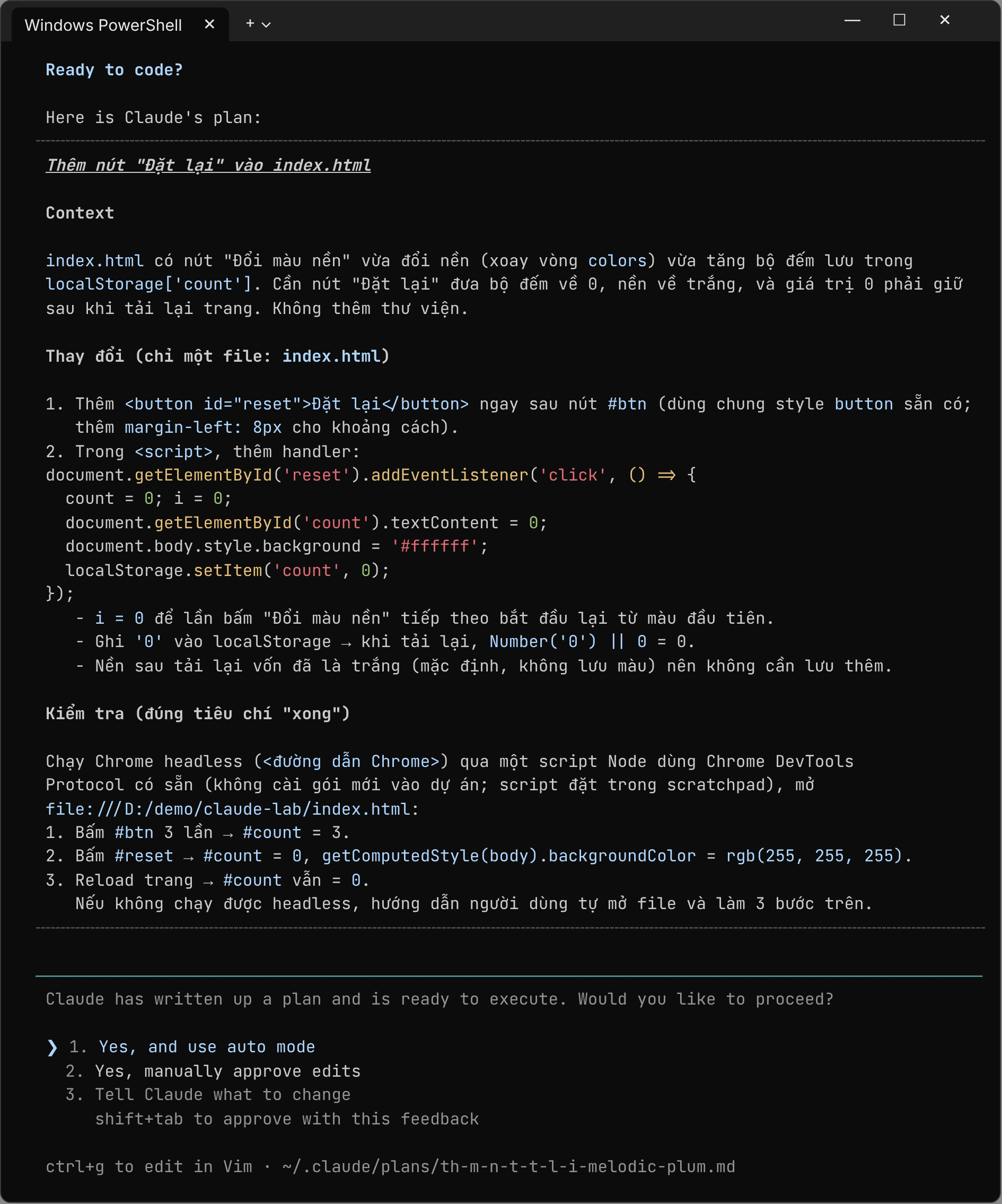 Image 3c. The plan and three options (Claude writes differently depending on the machine) (illustrative image)
An easy place to trip up: while the approval table is open, Shift+Tab means agree. To exit without approving, press Esc first and only then Shift+Tab. Small tasks such as changing a colour do not need Plan mode.
Step 4: CLAUDE.md, record what Claude cannot read on its own
Claude Code loads CLAUDE.md into every session. Type /init, and Claude reads the directory and writes a first version. If you just chose manual approval in Step 3, Claude will ask before creating the file; choose Yes. When we tried it, it created 29 lines: a description of each button, a note that the background colour transition takes 0.3 seconds, and how to check the page.
 Image 4a. Typing /init (illustrative image)
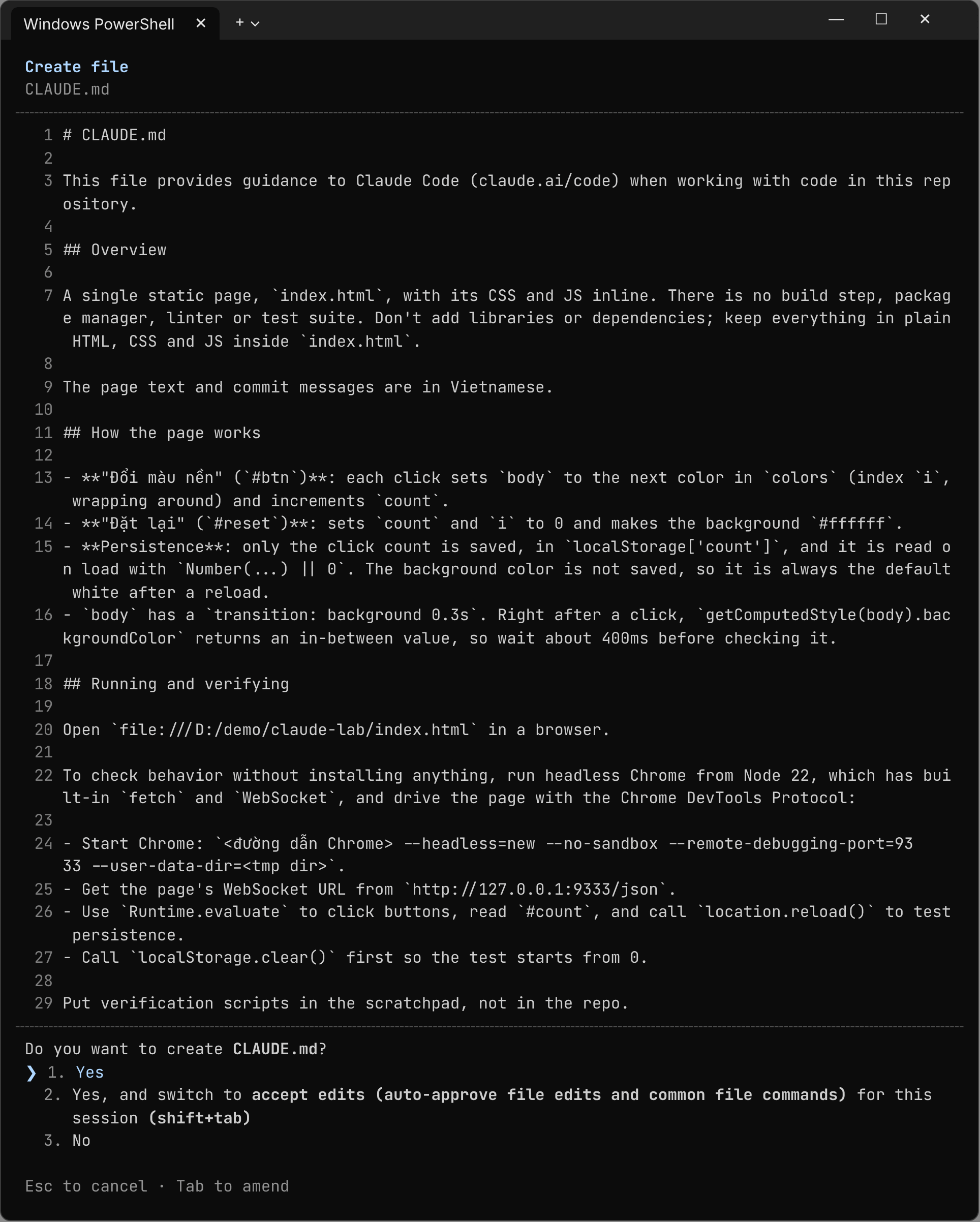 Image 4b. In manual approval mode, Claude asks before creating CLAUDE.md (illustrative image)
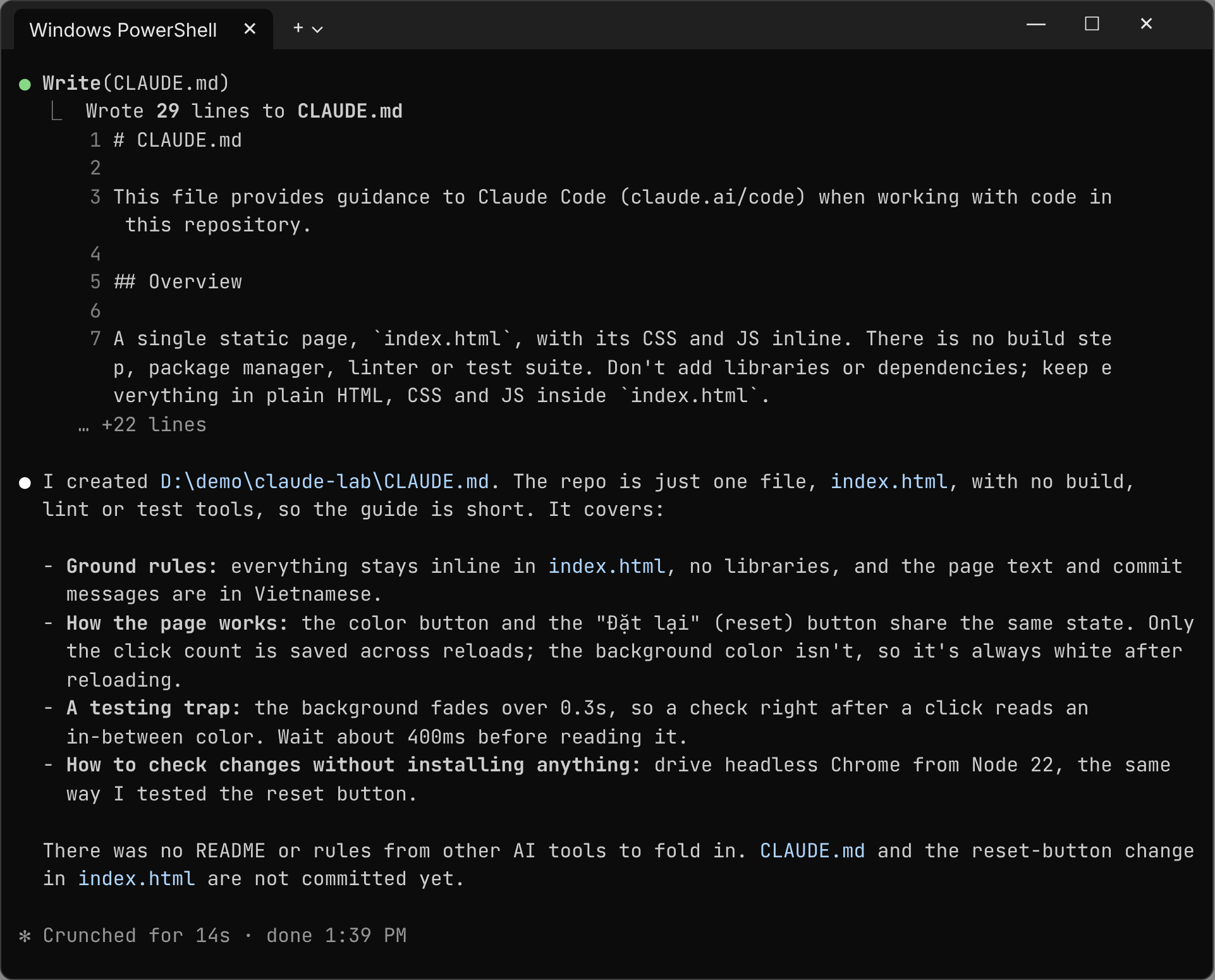 Image 4c. /init has finished writing CLAUDE.md (illustrative image)
Anthropic's documentation advises recording only what Claude cannot find for itself in the code, because every line takes up some of its attention on every task. Keep the way to check, the easy places to trip up, and decisions that are not in the code. The button descriptions Claude can read for itself, so delete them:
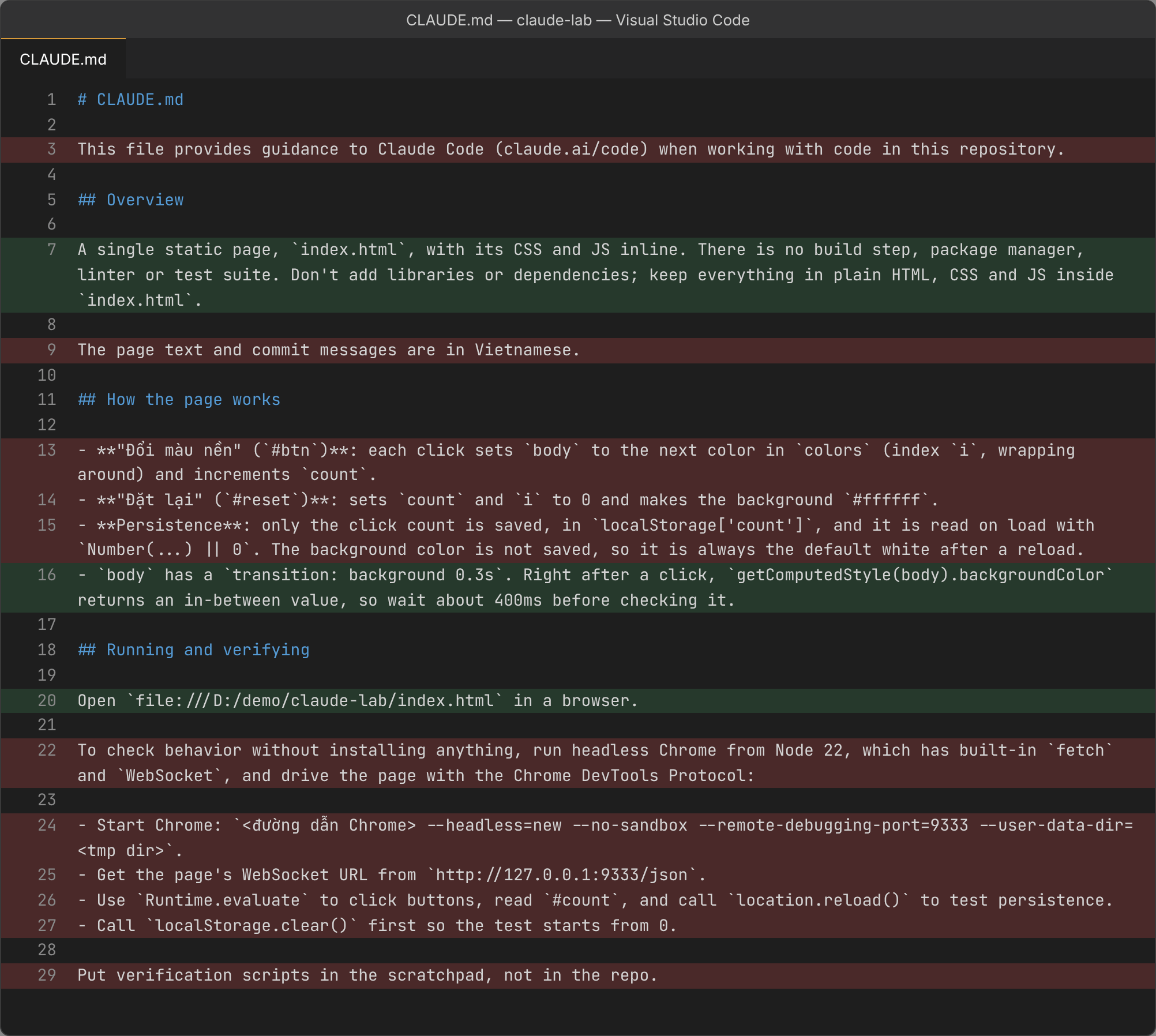 Image 4d. The version /init wrote: red lines should be deleted, green lines should be kept (illustrative image)
# Conventions
- Plain HTML/CSS/JS only, do not add libraries.

# Checking
- Open index.html in the browser, no server needed.
- The background colour transition takes 0.3 seconds: wait before checking the colour.
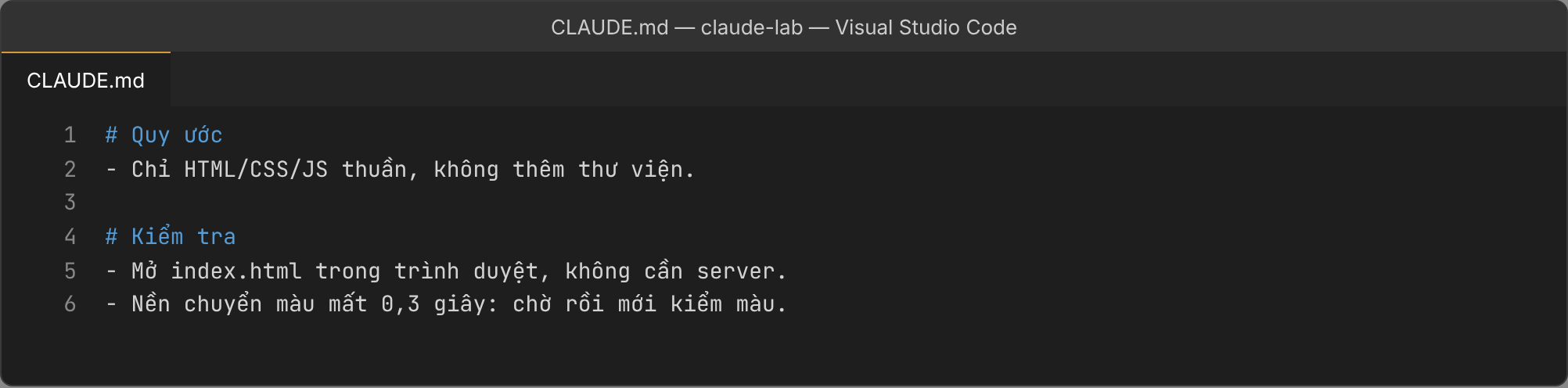 Image 4e. CLAUDE.md after trimming (illustrative image)
Edit it in VS Code or any editor. Open a new session, type
/context all, and find CLAUDE.md under Memory files. Finally, exit Claude, run git add . and commit both the Reset button and CLAUDE.md.
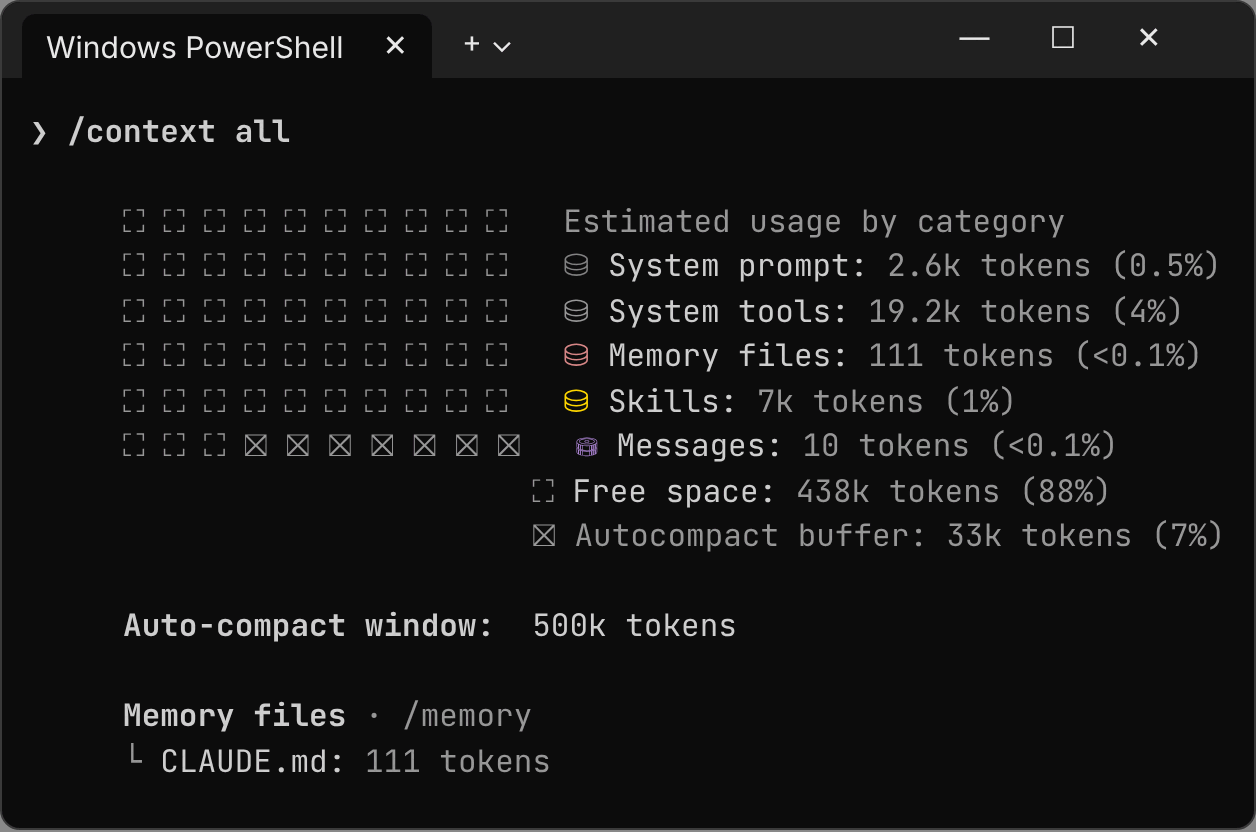 Image 4f. /context all: CLAUDE.md appears under Memory files (illustrative image)
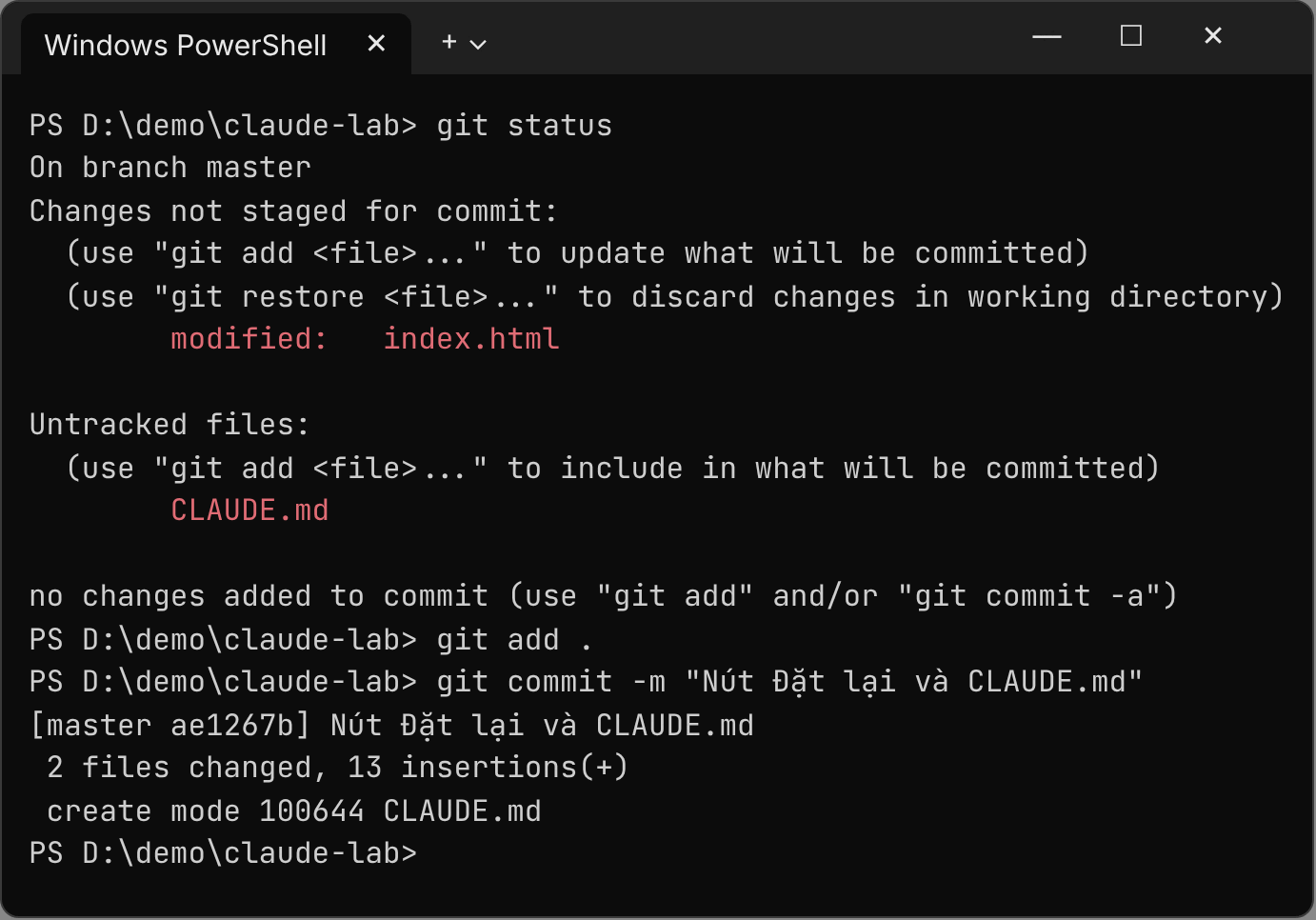 Image 4g. Commit the Reset button and CLAUDE.md (illustrative image)
When Claude says "it's done"
When you define upfront what done means, success stops being a matter of luck: it becomes something you can check, a number on the screen, a line in git diff.
But CLAUDE.md is only advice: Claude follows it almost every time, not every time. And every file attached with @, every plan, stays in the session's context, bringing with it cost and a loss of focus. Part 3 discusses how to manage that context.
Source: Best practices; Permission modes; Common workflows; Memory (CLAUDE.md); Interactive mode; Commands.
Comments
No comments yet. Be the first!
You need to sign in to comment.